
Accessing HeyTaco in Microsoft Teams
Once HeyTaco has been added to your Teams workspace, you can find it through the Apps bar in the left-hand sidebar. Click the Apps icon (it looks like a small grid or puzzle piece), then search for HeyTaco.
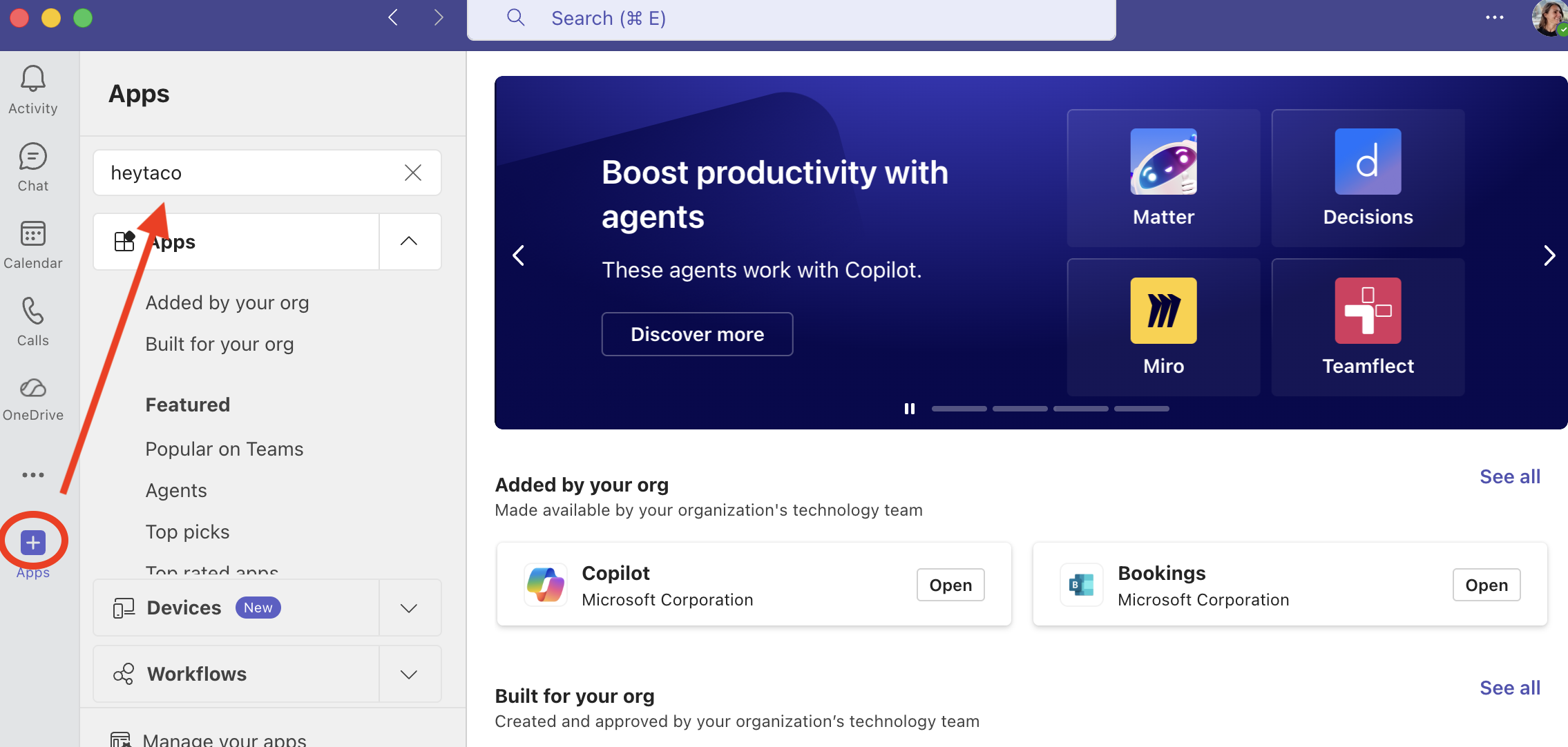
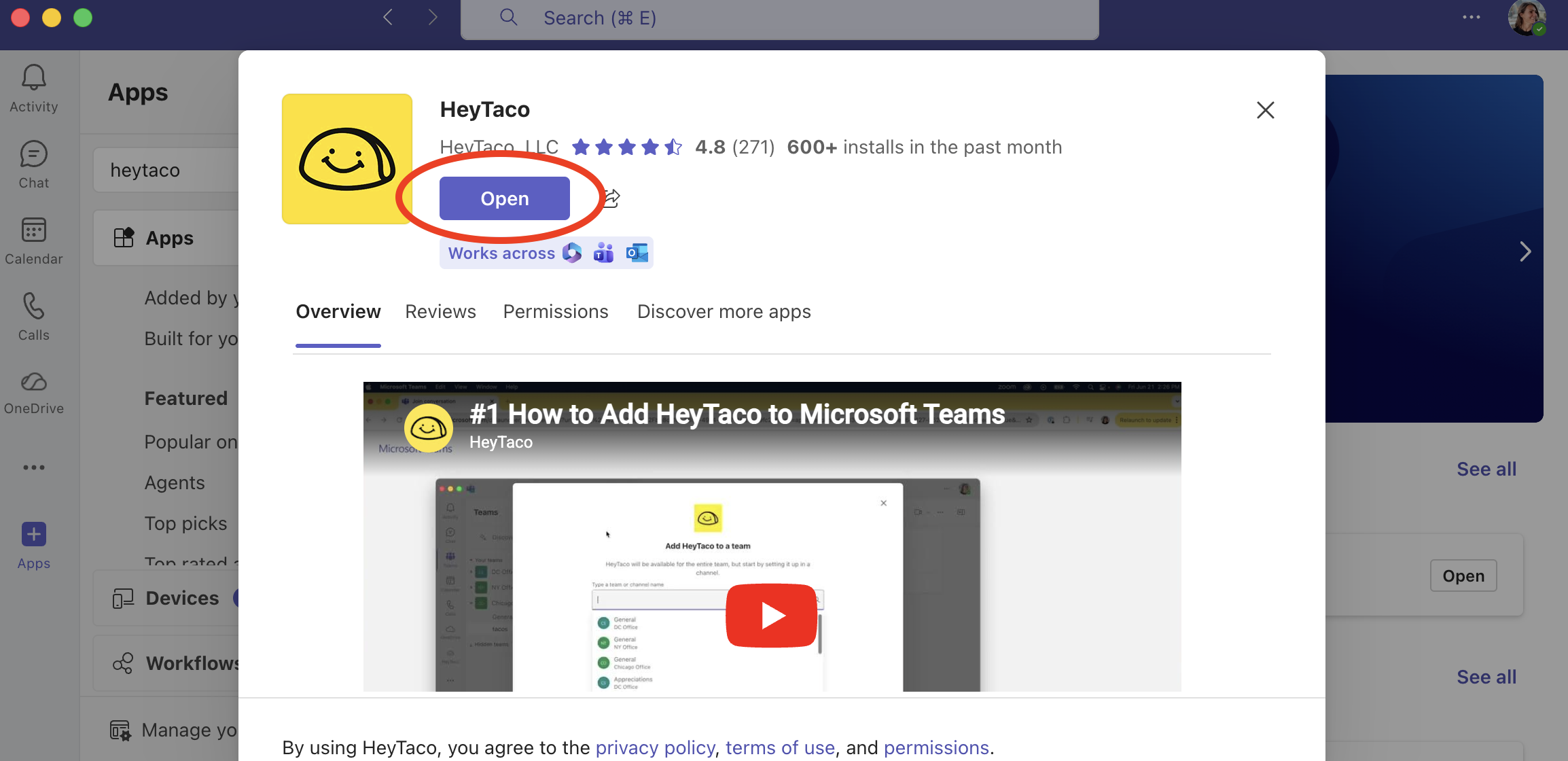
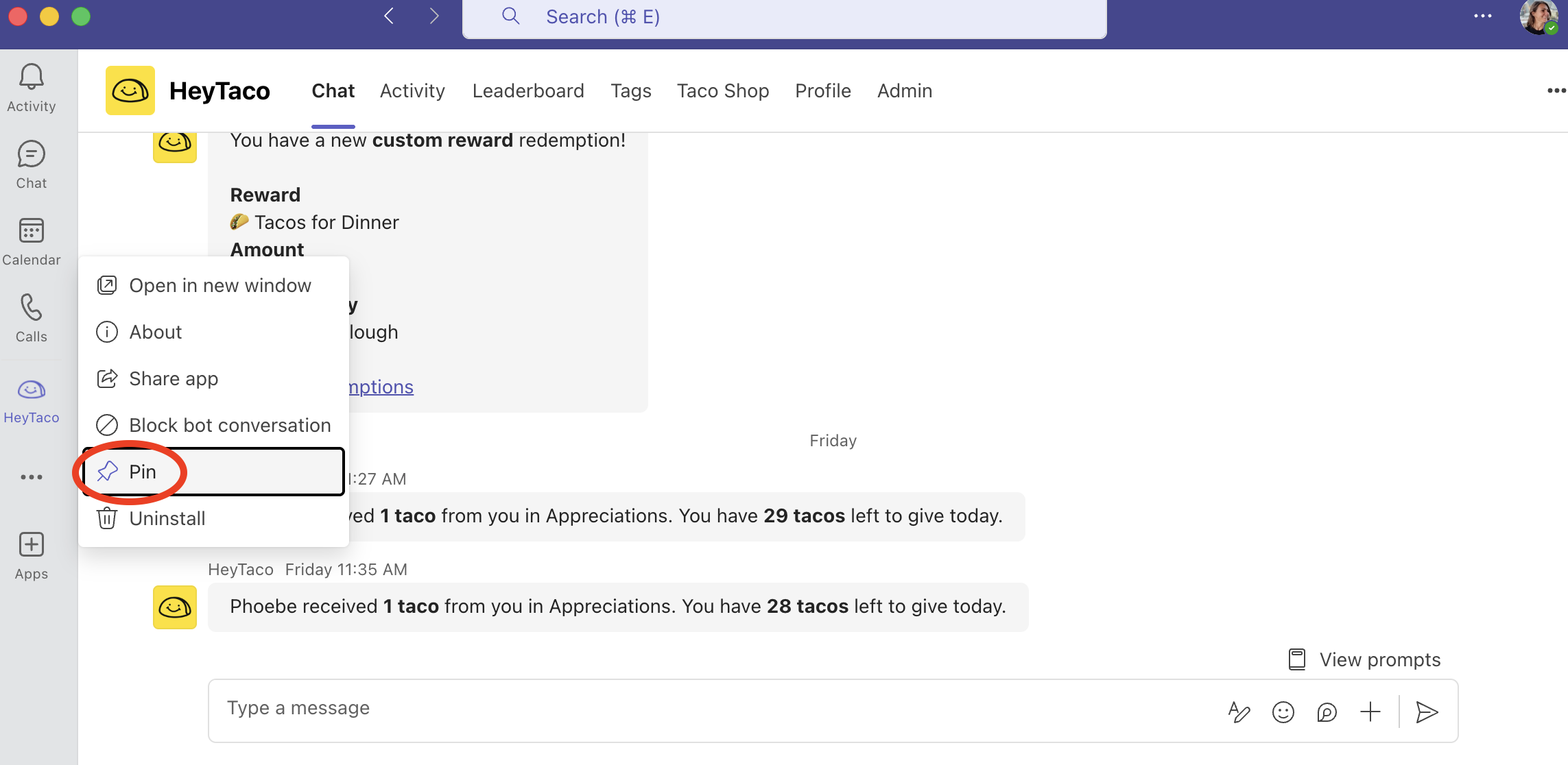
To make HeyTaco easier to find in the future, right-click the HeyTaco icon and select "Pin" to keep it permanently visible in your sidebar.
HeyTaco in Microsoft Teams isn't loading
If HeyTaco isn't loading properly in Microsoft Teams, here are the most common fixes:
Try a hard refresh
In Teams desktop, press Ctrl + Shift + R (Windows) or Cmd + Shift + R (Mac) to force a full reload of the app.
Clear your Teams cache
Teams caches app data aggressively, which can sometimes cause HeyTaco to show a blank screen or stale content. Clearing the cache and restarting Teams usually fixes this. Search for "clear Microsoft Teams cache" for steps specific to your operating system.
"Sad taco — you don't have organization access"
This error means the signed-in user doesn't have admin permissions in HeyTaco — it's not a loading issue. If you need admin access, ask your current HeyTaco admin to grant it via Admin → People.
Try the web version
If the Teams app isn't cooperating, you can access HeyTaco in a browser at account.heytaco.com. Sign in with your Microsoft account.
Reinstall the HeyTaco app
In Teams, go to the team → three dots → Manage team → Apps → remove HeyTaco, then add it again from the Apps section.